


The hardest part of selling online is getting someone to commit. Once a customer reaches checkout, that work is done. They trust you, they've chosen a product, and their card is out.
That's why checkout is one of the best moments to offer something more. Get it wrong, though, and a pushy or badly priced offer costs you the original sale. This guide covers seven strategies for checkout upsells that add revenue without scaring customers off, and how to run them with SellMore Post Purchase Upsell.
Where Checkout Upsells Can Appear on Shopify
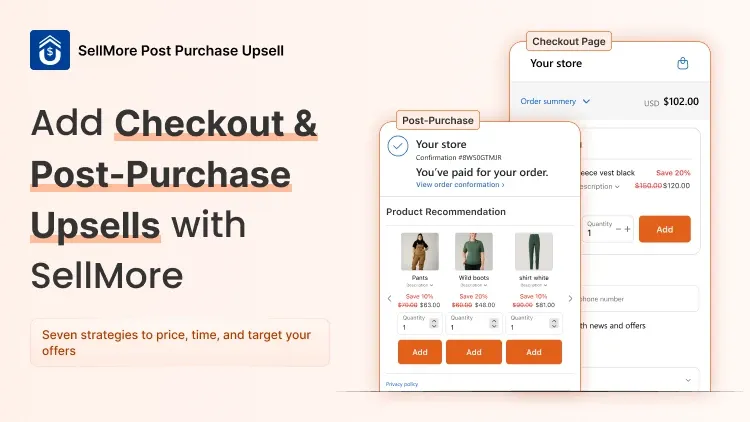
A checkout upsell is an extra product, often discounted, offered while the customer is completing their purchase. Think of the fast-food classic: "Would you like fries with that?" On Shopify, there are four places to make that offer, and only one needs Shopify Plus:
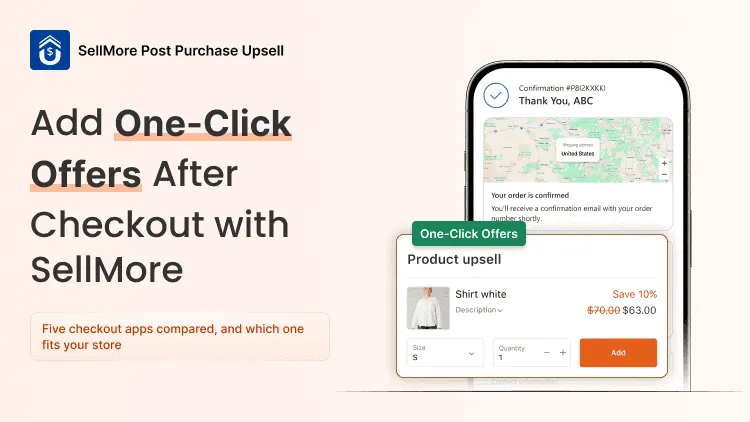
The post-purchase page is the best option for most stores. According to Shopify's developer documentation, customers can accept a post-purchase offer with one click, without re-entering payment details. If they decline, their order goes through as normal.
1. Match the Upsell Price to What the Customer Is Spending
Most customers reach checkout with a spending limit in mind. They've compared prices and decided roughly how much to spend. By the time shipping and taxes are added, they're often close to that limit already.
So keep the upsell small compared with the order. A common rule of thumb is 10% to 30% of the order value:
A $15 add-on on an $80 order feels like a small extra. A $60 add-on feels like a second purchase, and most customers will decline.
Check your profit after the discount. Say a product sells for $20 and costs you $8:
At 20% off, the customer pays $16, and you keep $8.
At 50% off, the customer pays $10, and you keep only $2.
A bigger discount gets more yeses, but if it leaves you almost nothing, it isn't worth it. Pick the smallest discount that still feels like a deal.
Show shipping and taxes early. If customers are surprised by extra costs during checkout, they're unlikely to say yes to anything else.
With SellMore: set a percentage or fixed-amount discount for each offer, and use a Cart/Order value trigger so each offer only shows on the right orders. For example, show a $10 add-on on orders over $40, and a $25 add-on on orders over $100. That way, every customer sees an offer that fits what they're already spending.
2. Offer the Product That Completes the Order
The best upsell is something the customer would probably buy anyway, just later. Someone buying a laptop will need a bag at some point. Offer the bag now at 30% off, and you've saved them a trip and earned a second sale.
To find the right products:
Look at what customers buy next. Check your orders for products that often appear in a customer's second purchase.
Think about what makes the product work better. Cases for phones, refills for consumables, cleaning kits for shoes.
Match the offer to the order. A charging cable makes sense after a phone case, not after a pair of socks.
With SellMore: set a Product collection or Specific product trigger, so each offer only shows for orders that contain the matching product. You can choose the upsell product yourself, or let AI recommendations pick it.
3. Pick the Right Moment
Upselling is like fishing: you don't want to spook the customer before they're hooked. Before they commit, they're focused on the price. After they commit, they're far more open to a good deal.
A fast-food cashier doesn't ask if you want a larger portion as you walk up. They take your order first, then mention the upgrade. The same applies to your store:
Checkout page (Shopify Plus): a small, low-cost add-on, like a warranty or a sample, that won't slow down payment.
Post-purchase page: your main upsell. The customer has already paid, so the offer feels like a bonus rather than a hurdle.
Thank you page: a backup for customers who skip the post-purchase page, plus recommendations for next time. With SellMore, customers usually accept here without re-entering payment details, and the product joins their original order.
Neness, a Polish fragrance store on Shopify Plus, kept it simple: one focused upsell at checkout. With SellMore, that single funnel brought in 27,584.68 PLN from 1,281 conversions.
4. Offer One Thing at a Time
Fast-food chains don't hand you the whole menu at once. They offer one upgrade at a time and scale down as they go: the bigger portion, then the fries, then the drink, then the sauce. Each offer is cheaper than the last, so each yes feels smaller.
Apply the same idea after checkout:
First offer: your strongest complementary product.
If declined: a smaller, cheaper alternative.
Stop there. Two offers is usually enough.
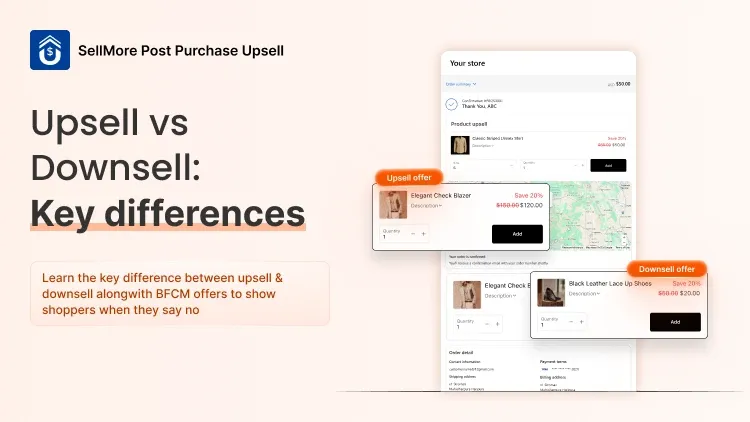
With SellMore: a funnel can run across up to three post-purchase pages, with a different next step depending on whether the customer accepts or declines. Shopify also limits customers to three accepted post-purchase offers per checkout.
5. Make the Discount Feel Like a Reward
The customer has spent time researching and deciding. An upsell should feel like a thank-you for finally buying, not another sales pitch.
A few ways to make the offer feel like a reward:
Show the saving. "Save $8" or "20% off, just for this order" is clearer than a crossed-out price on its own.
Use volume deals for products people buy in multiples. "Add another for $5 off each" rewards bigger orders.
Bundle small items. Two or three related products at one price feel like more value than a single discounted item.
With SellMore: you can show a saving label with the amount or percentage saved, offer Fixed amount per item added discounts for volume deals, and group up to 3 products in a Bundle widget. Discounts apply automatically, so customers don't need a code.
6. Keep It Optional, and Keep It Honest
A good upsell is a suggestion, not a demand. Customers should be able to say no in one click, without feeling punished.
That doesn't mean you shouldn't create urgency. A genuine one-time offer is a strong reason to act now. The keyword is genuine:
Only call it a one-time offer if it is. If customers later see the same discount everywhere, they'll stop trusting your offers.
Use real deadlines. A countdown that resets on every visit damages trust quickly.
Make declining easy. A clear "No thanks" button keeps the experience respectful.
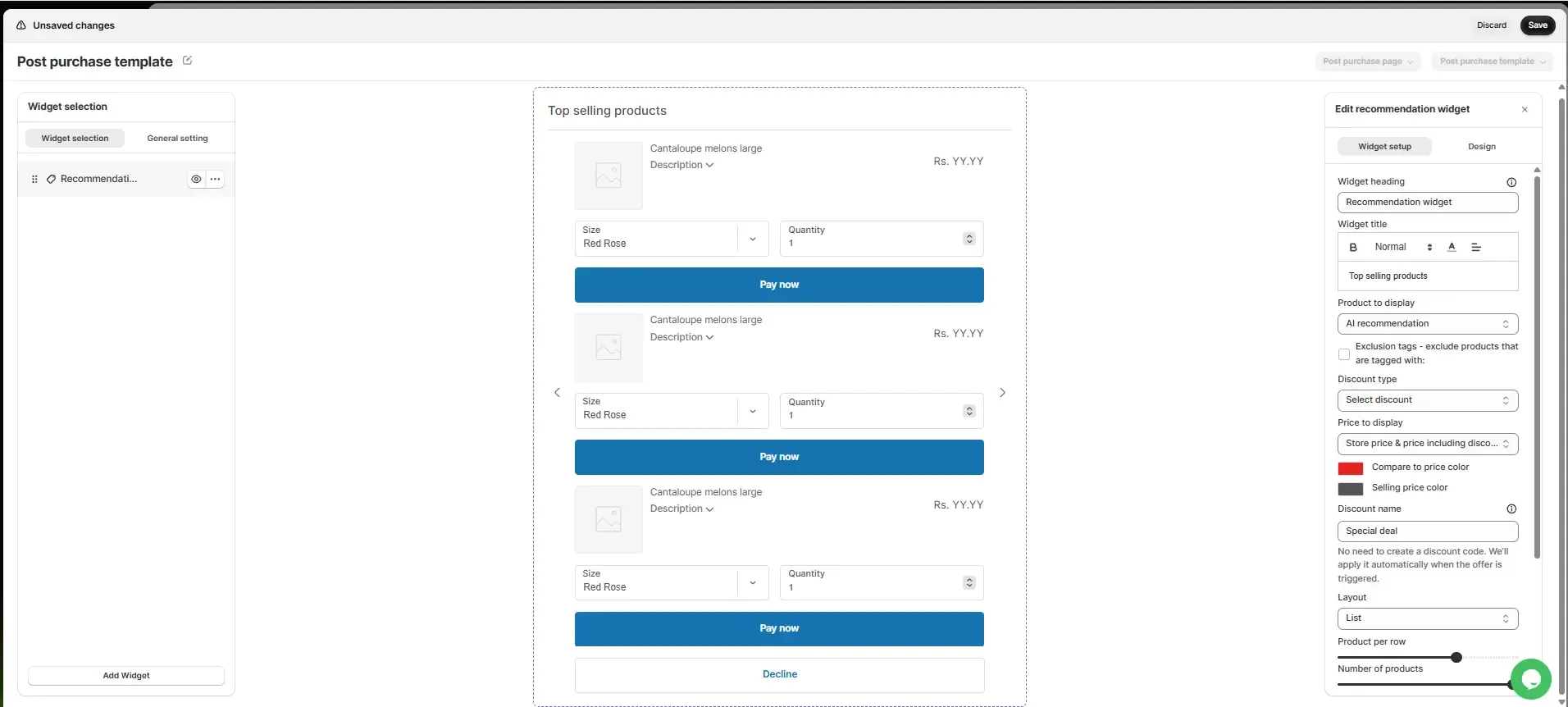
With SellMore: every post-purchase offer shows a Pay now and a Decline button. You can add a countdown with Show discount timer and choose to hide the offer when time runs out, so the deadline is real.
7. Use a Checkout Upsell App to Run and Track It
Building upsells by hand means coding offers, managing discounts, and guessing what's working. A checkout upsell app handles the design, placement, targeting, and tracking, so you can focus on choosing the right offers.
With SellMore, you can:
Run one-click offers on up to three post-purchase pages.
Add product upsells, recommendations, bundles, and next-order discount codes to the Thank you and Order status pages.
Show checkout page offers on Shopify Plus.
Target offers by order value, item count, product, collection, tag, SKU, shipping location, or discount code.
Track impressions, CTR%, CVR%, and revenue for every funnel on the Dashboard.
Common Checkout Upsell Mistakes
Offering your most expensive product. A second hero product at full price rarely works after checkout.
Showing the same offer to everyone. Untargeted offers get ignored.
Repeating your cart offers. If you already cross-sell in the cart, the differences between cross-sells and post-purchase upsells will help you avoid offering the same product twice.
Forgetting customers who skip the post-purchase page. Shopify doesn't show it for some payment methods, such as Apple Pay, Google Pay, and gift cards. Add an offer to your Thank you page as well. Here's what else works on the Thank you page.
How to Set Up Your First Checkout Upsell in SellMore
Install SellMore and choose Quick setup, Manual setup, or Guided setup with the SellMore team.
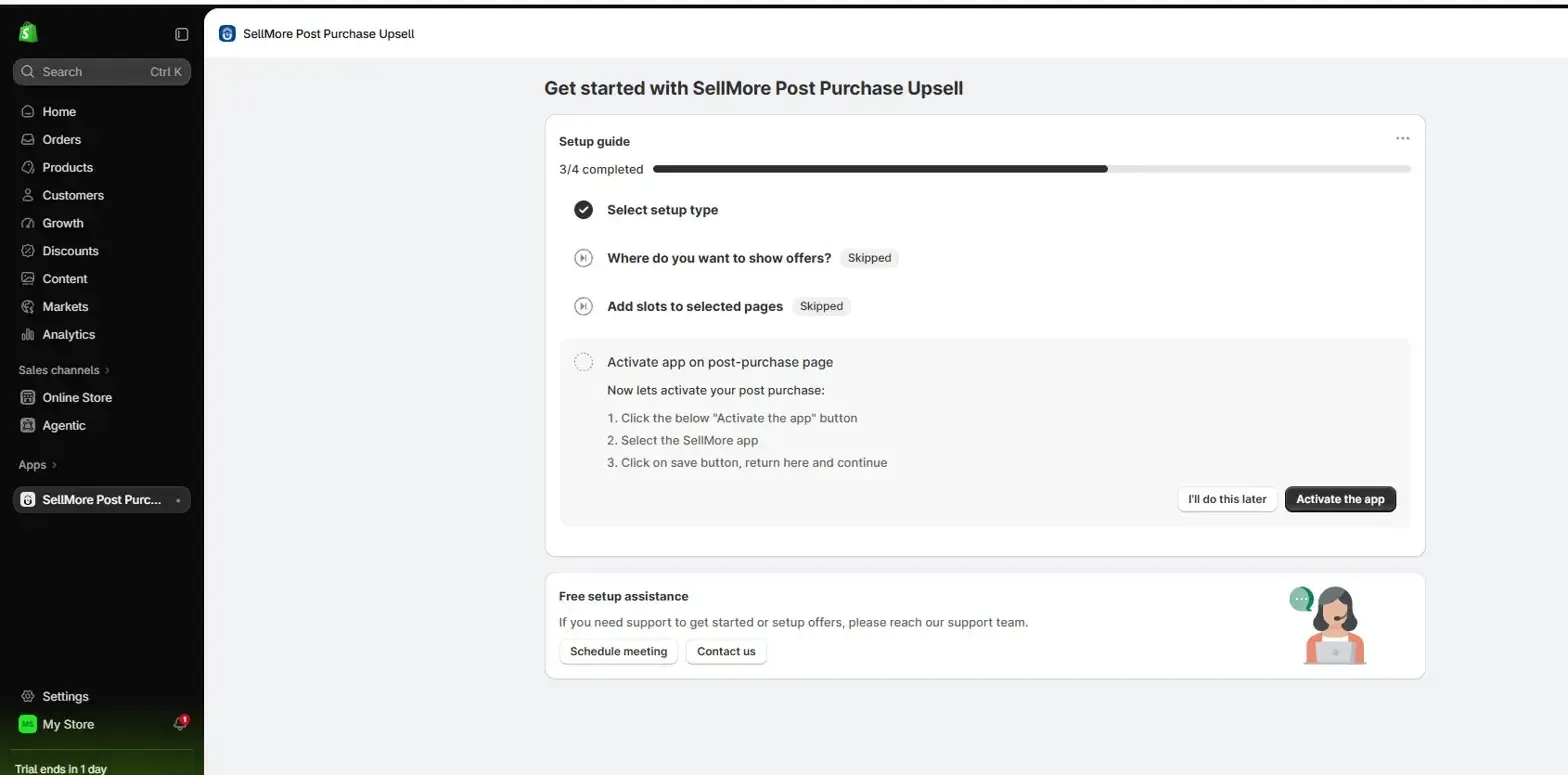
Make SellMore your post-purchase app. Click Activate the app, select SellMore Post Purchase Upsell in Shopify's checkout settings, and click Save. Back in SellMore, click Verify setup, then Enable app.
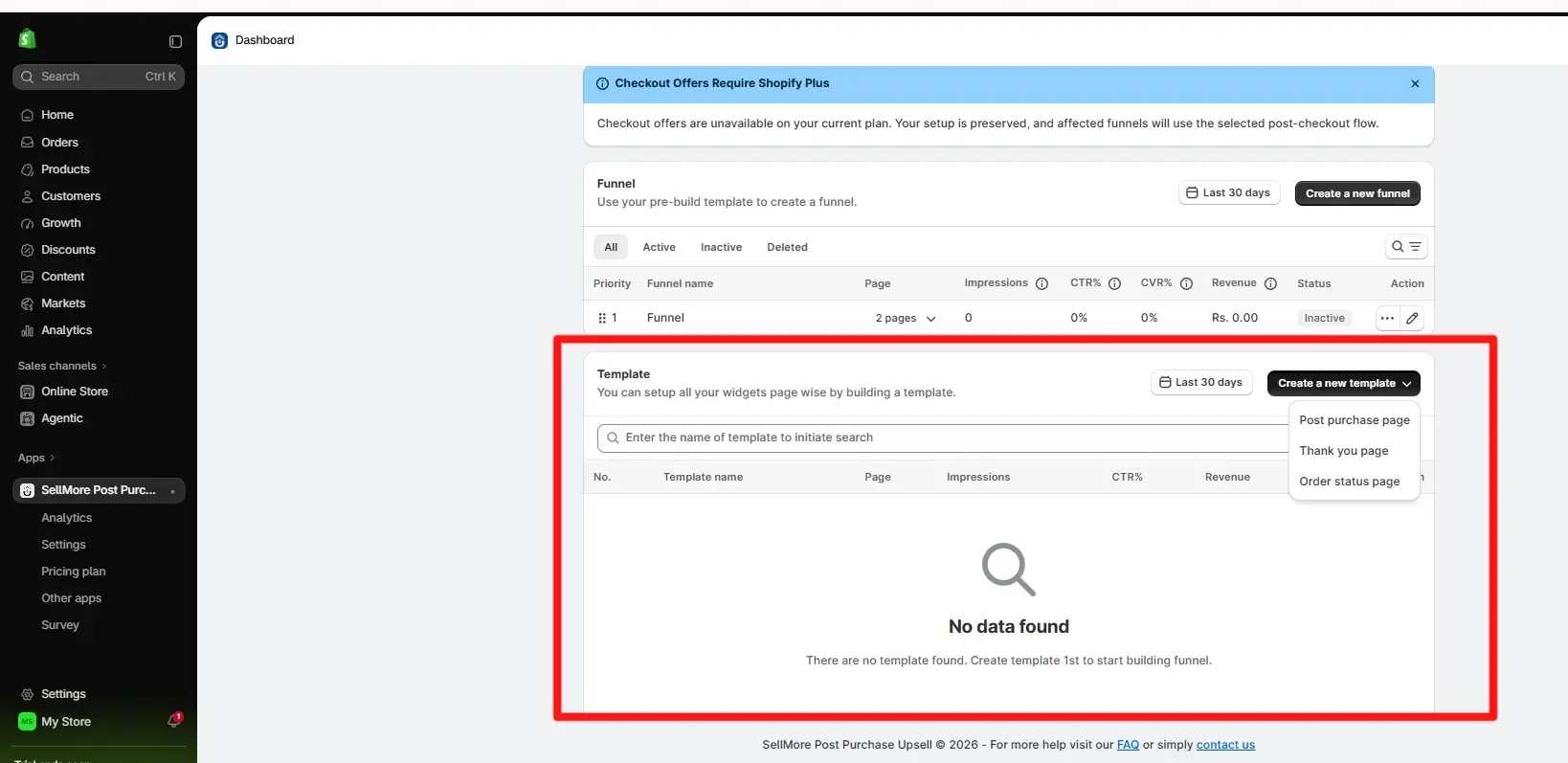
Build a template. Go to Template > Create a new template > Post purchase page, add an Upsell or Bundle widget, then set the product and discount.
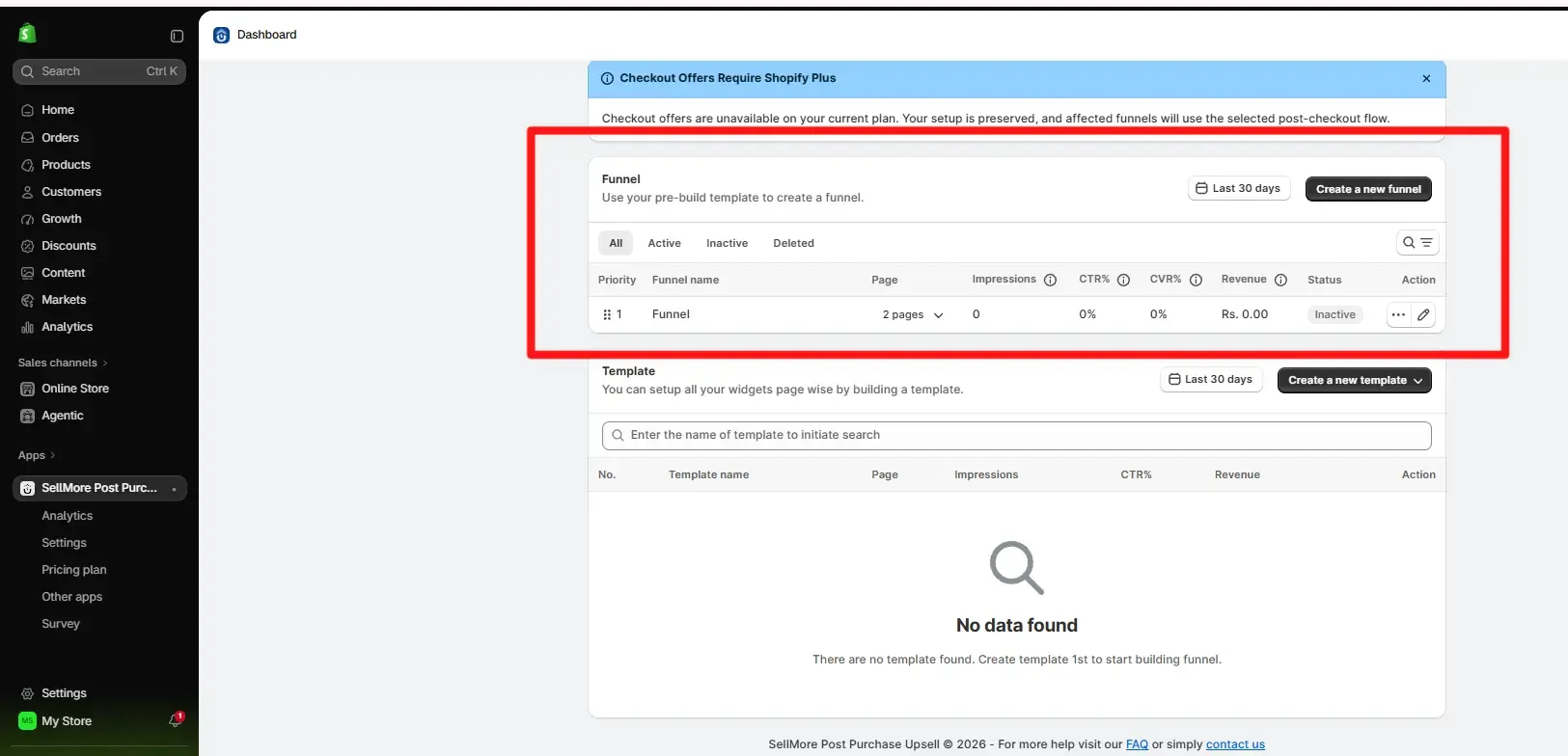
Create a funnel. Click Create a new funnel, choose your pages, and set a trigger. Click the + next to Select page, choose your template, and click Save.
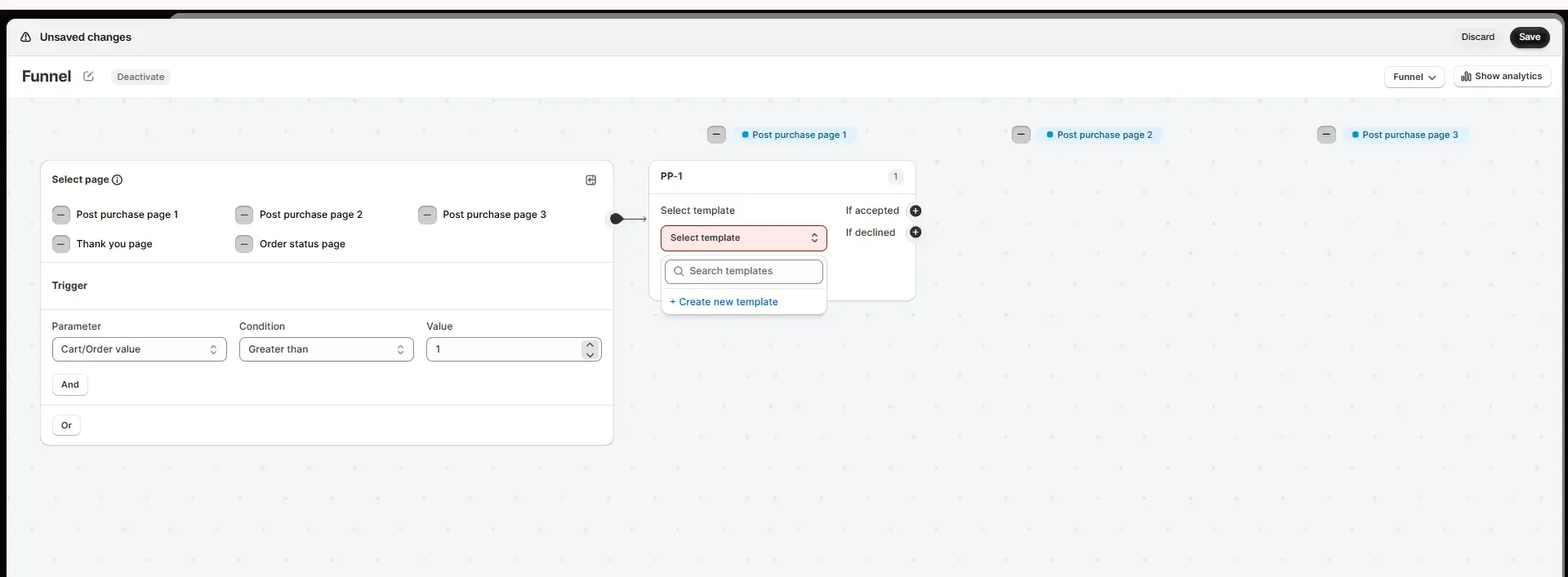
A setup you can copy: if your average order is $60, offer a $12 to $18 complementary product at 15% off on the post-purchase page, shown only on orders that contain the matching main product. Then add a product recommendation to the Thank you page as a backup.
How to Tell Your Upsells Are Working
Watch three numbers in SellMore's Dashboard:
Conversion rate (CVR%): if fewer than about 2% of customers accept, change the product or discount before you change the design.
Upsell revenue: compare it with your discount cost to make sure each offer is profitable.
Average order value: this should rise steadily as your offers improve.
Give each offer a week or two before judging it, then change one thing at a time.
Make Every Checkout Count
Checkout upsells work when three things line up: an offer priced to the customer's budget, a product that completes their order, and timing that feels like a reward. Miss one, and the offer gets ignored. Get all three right, and every order is worth more.
With SellMore, you can run offers on the post-purchase, Thank you, and Order status pages on any plan, and on the checkout page with Shopify Plus, without touching code. Every paid plan includes a 14-day free trial.
Add Your First Checkout Upsell with SellMore