



Review Widget
September 24, 2026
0 Views
The Review Widget and Star Rating features in SellMore let you show product reviews and star ratings on the checkout page, post-purchase pages, Thank you page, and Order status page. You can add star ratings inside Upsell, Recommendation, and Bundle widgets, or use a dedicated Review Widget.
Turn on Show Star Rating in the widget setup, then set the heading, minimum rating, layout, reviews per row, and whether to show the reviewer name. A third-party review app must be integrated before ratings can display.
The Review Widget and Star Rating features let you display product reviews and ratings on your checkout page, post-purchase pages, Thank you page and Order status page. This builds customer trust and helps shoppers make informed decisions.
In this guide, you'll learn how to add star ratings to your product widgets and set up a dedicated review section.
⭐ How This Feature Works
Star Rating in Widgets
Add ratings to your Upsell, Recommendation, and Bundle widgets to showcase product reviews inline.
Review Widget
Display a dedicated section with detailed customer reviews and ratings anywhere on your page.
⚙️ Star Rating in Product Widgets
Enabling Star Ratings
Show Star Rating Toggle
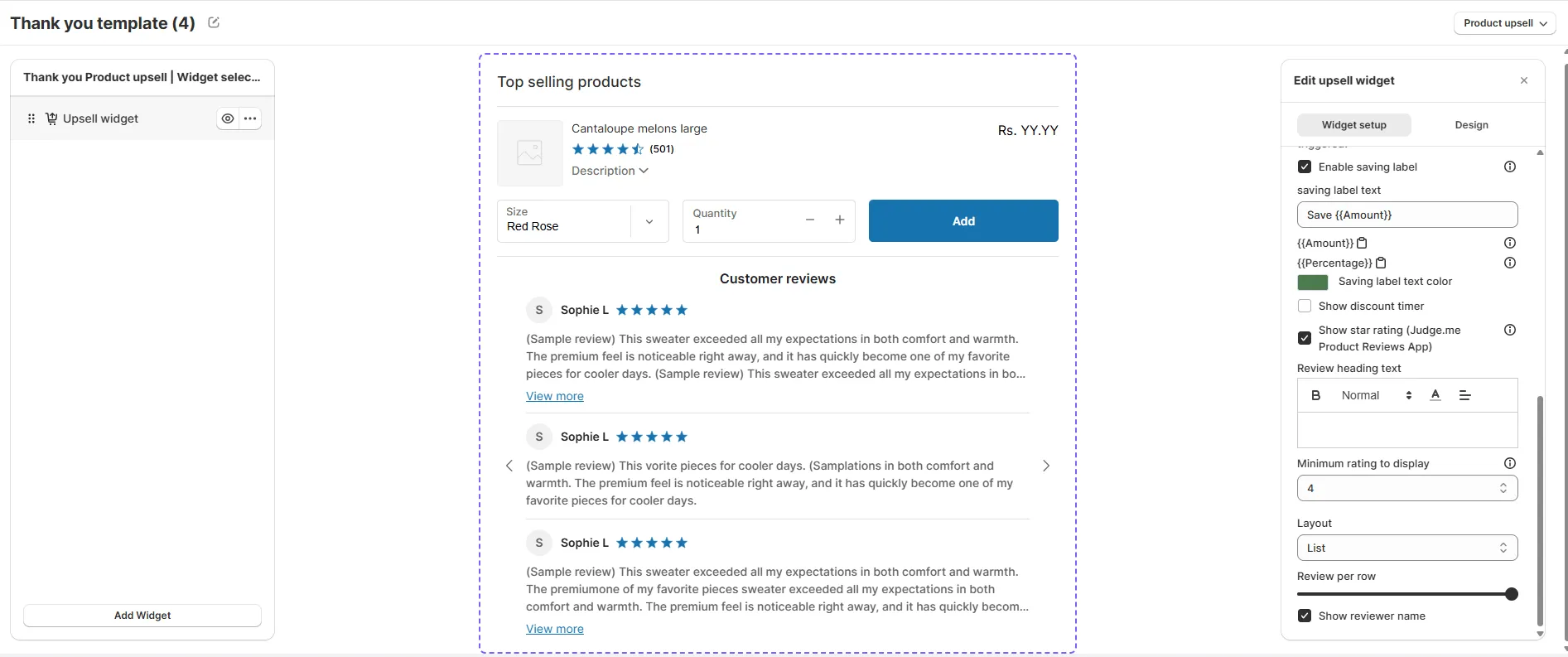
Enable this option to display star ratings on your products. You'll find it in your widget setup panel. Once enabled, additional rating options appear below.
Note: To display star ratings, you must first integrate a third-party review app. See the integration section below for details.
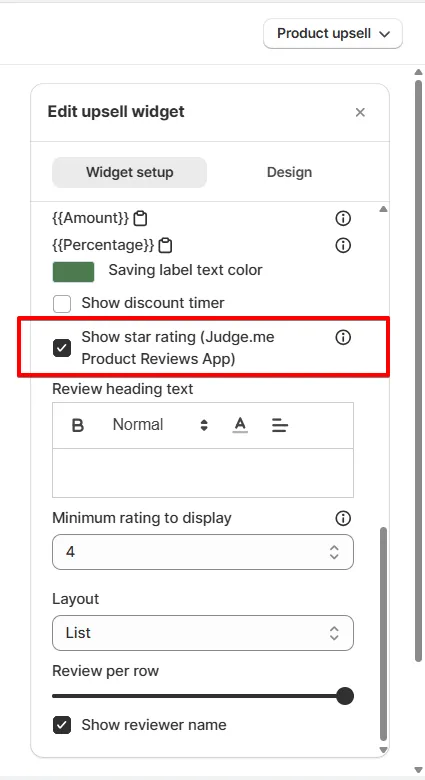
Rating Display Options
Review Heading Text Text
Add a custom title above your ratings. For example: "Customer Reviews" or "What Shoppers Say."
Minimum Rating to Display Number
Set the lowest star rating you want to show. If you enter 4, only products with 4 or 5 stars appear.
Layout List / Grid
Choose how to arrange your reviews. List view shows reviews stacked vertically. Grid view displays them side-by-side.
Review Per Row Slider
Control how many reviews display per row in grid layout. This helps fit more reviews on smaller screens.
Show Reviewer Name Toggle
When enabled, displays the customer's name with their review. Uncheck to hide reviewer identity.
Tip: Show reviewer names to increase trust and authenticity of customer feedback.
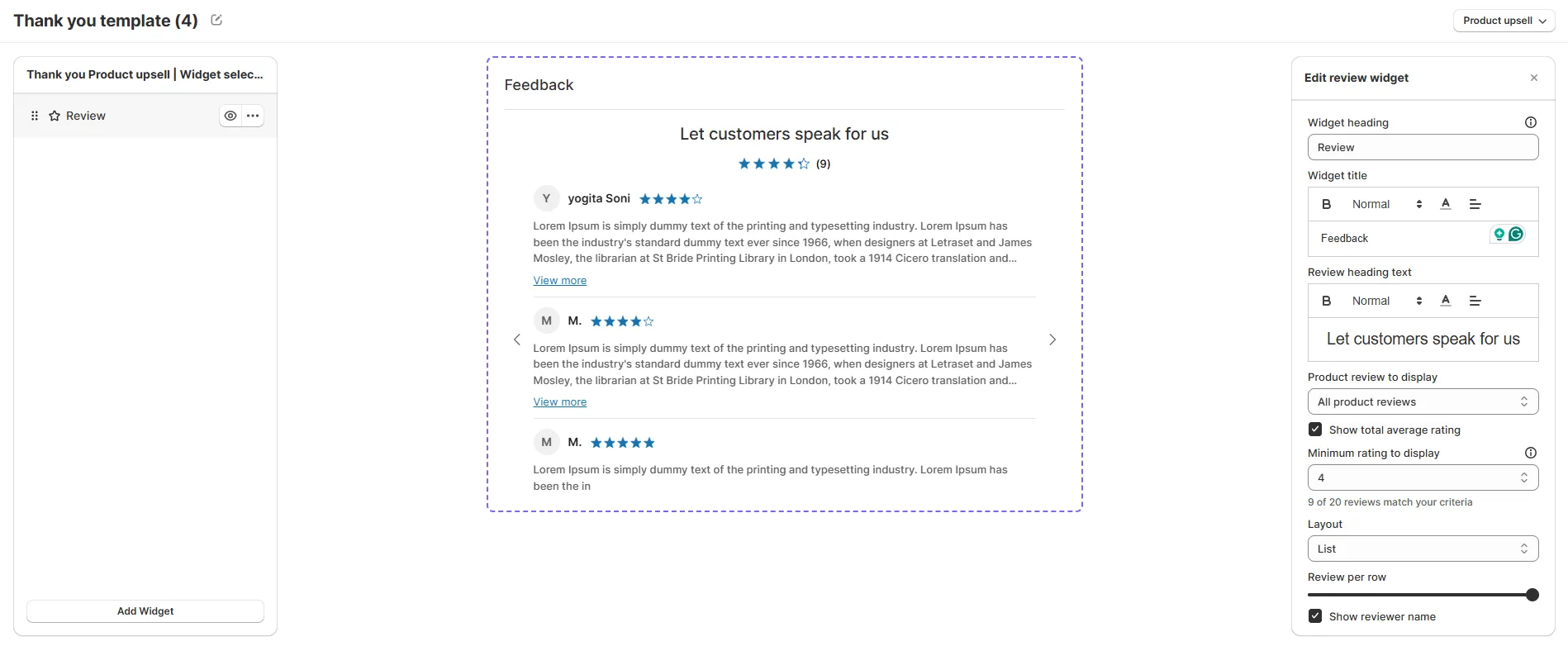
💬 Review Widget
Widget Identity
Widget Heading Text
Enter an internal name to identify this widget in your editor. This is for your reference only—customers won't see it.
Widget Title Text
This is the main heading your customers see above the reviews. Example: "Customer Reviews" or "What People Are Saying."
Review Heading Text Text
Add a subheading to introduce your reviews. For example: "Real feedback from real customers."
Review Source
Product Review to Display Dropdown
Choose which reviews appear in your widget:
- All Product Reviews — Show reviews from every product that matches your minimum rating filter
- Specific Collection — Display only reviews from products in a selected collection
- Specific Product — Show reviews for one individual product
Review Display Settings
Minimum Rating to Display Number
Set the lowest star rating to show. If you enter 4, only 4 and 5-star reviews appear in your widget.
Layout List / Grid
Choose how to arrange reviews. List stacks them vertically. Grid shows multiple reviews across rows.
Review Per Row Slider
Control how many reviews display per row when using grid layout. Helps optimize spacing on different screen sizes.
Show Reviewer Name Toggle
Enable to display customer names alongside their reviews. Disable to keep reviews anonymous.
Tip: Use "All Product Reviews" with high minimum ratings to highlight your best feedback and build credibility.
🔗 Third-Party Review Integration
To display star ratings in your widgets, you must integrate a third-party review application with SellMore. This integration allows our app to pull and display real customer ratings and reviews from your chosen review platform.
Before You Start: Make sure your review app is already installed and active in your Shopify store. You'll need access to your review app's API credentials to complete the integration.
To integrate a review app, visit our Third-Party Review App Integration Guide for step-by-step instructions. The guide covers popular review platforms and troubleshooting common issues.