



Star Reviews Third Party Integration
September 24, 2026
0 Views
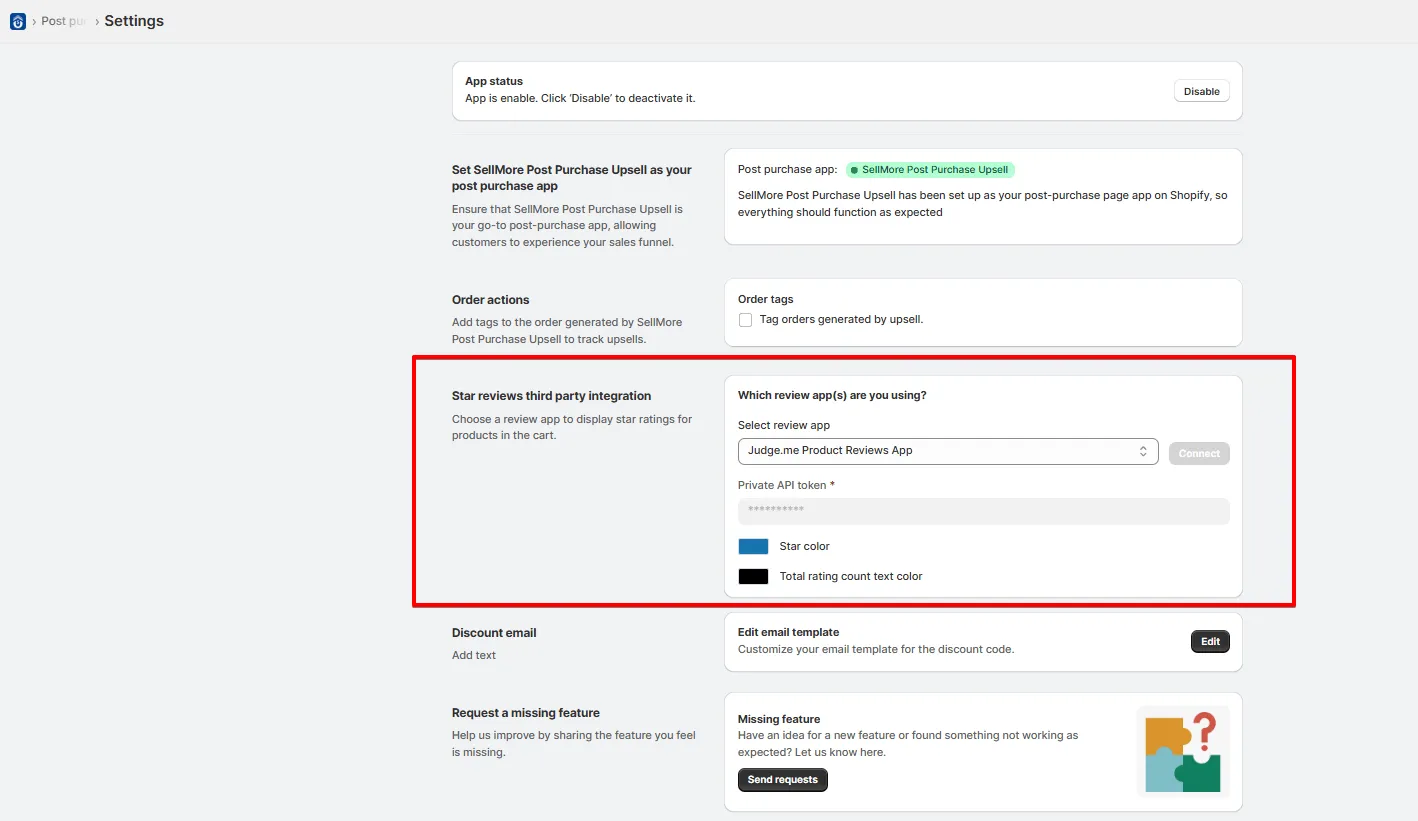
The Star Reviews Third Party Integration in SellMore Post Purchase Upsell lets you connect a review app so customers see star ratings and review counts on the Checkout page, Post purchase pages, Thank you page, and Order status page. It works with Judge.me, Ali Reviews (Kudosi), Yotpo, Loox, Junip, Stamped.io, and Rivyo.
Open SellMore Settings, choose your review app, and paste the API credentials from that app. Your plan must include the API token feature. You can connect one review app at a time and customize the star color and review count text color.
The Star Reviews Third Party Integration in SellMore Post Purchase Upsell lets you connect your favourite review apps to display customer ratings and reviews directly on Checkout page, Post purchase pages, Thank you page and Order status page. This feature works with seven popular review platforms.
In this guide, you'll learn how to find the integration settings, which apps are supported, and step-by-step instructions for connecting each one.
🎯 Where to Find This Feature
- Open the SellMore Post Purchase Upsell app from your Shopify admin.
- Click Settings in the left sidebar.
- Scroll to Star Reviews Third Party Integration.
- Select a review app from the dropdown and add your API credentials.
📚 Supported Review Apps
SellMore integrates with these seven review platforms:
- Judge.me — Display star ratings and review counts
- Ali Reviews (Kudosi) — Show customer reviews and ratings
- Yotpo — Integrate Yotpo reviews seamlessly
- Loox — Display photo and text reviews
- Junip — Add Junip review data to your cart
- Stamped.io — Connect Stamped review content
- Rivyo — Use Rivyo reviews and ratings
Important: Your plan must include access to the "API token" feature to use this integration.
⚙️ How Review Integration Works
After you connect a review app, SellMore automatically pulls review data from that platform. Your customers see star ratings and review counts in your post-purchase upsell. This builds trust and can increase average order value.
The integration displays:
- Star ratings — Visual star display
- Review count — Total number of reviews per product
- Customizable colors — Adjust star color and text color to match your brand
🔗 Integration Steps by App
Judge.me Integration
Step 1: Install and Open Judge.me
First, install Judge.me from the Shopify App Store if you haven't already. Then open the app.
Step 2: Get Your API Token
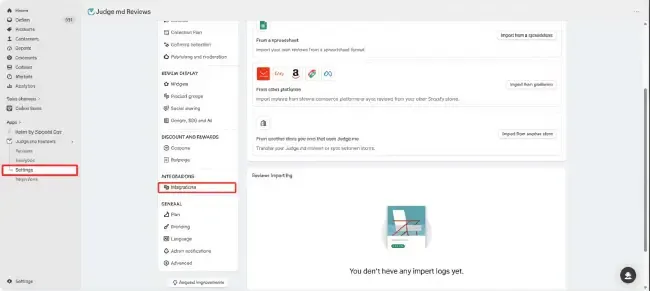
- Click Settings in the Judge.me menu.
- Go to Integrations.
- Click the "View API Token" button.
- Copy the Private API Token (not the public one).
Step 3: Connect to SellMore
- Go back to SellMore settings.
- Select Judge.me from the dropdown.
- Paste your API token into the field.
- Click Connect.
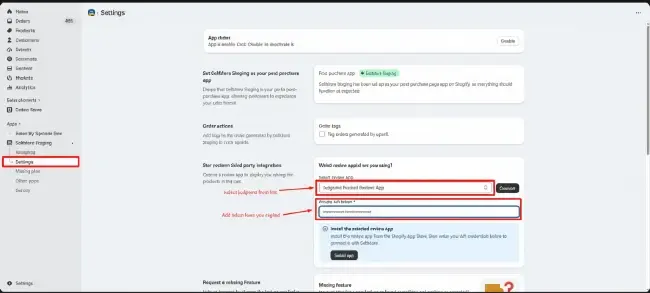
A success message will appear. Judge.me is now integrated!
Ali Reviews (Kudosi) Integration
Step 1: Install and Open Ali Reviews
Install Ali Reviews from the Shopify App Store. Then open the app.
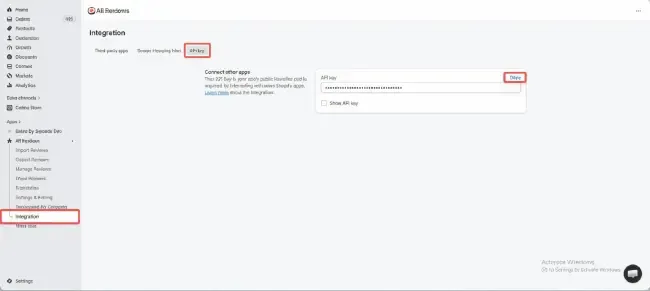
Step 2: Find Your API Key
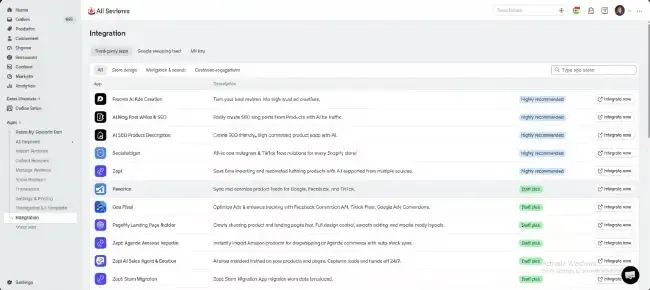
- Click the Integration tab.
- Click "API Key".
- Copy the token displayed.
Step 3: Connect to SellMore
- Go to SellMore settings.
- Select Ali Reviews from the dropdown.
- Paste your API key.
- Click Connect.
You're done! Ali Reviews is now connected.
Yotpo Integration
Step 1: Install and Open Yotpo
Install Yotpo from the Shopify App Store. Then open the app.
Step 2: Access Your App Key
- Click "Go to Yotpo Reviews".
- You'll be taken to the Yotpo dashboard in a new tab.
- Click your Profile icon (top right).
- Select Account Settings.
- A new tab opens with your settings.
- Go to the General Settings tab.
- Find and copy your App Key.
Step 3: Connect to SellMore
- Return to SellMore settings.
- Select Yotpo from the dropdown.
- Paste your App Key.
- Click Connect.
Success! Yotpo reviews are now active.
Loox Integration
Step 1: Install and Open Loox
Install Loox from the Shopify App Store. Then open the app.
Step 2: Generate an API Key
- Click Settings.
- Click "API Keys".
- Click the "Generate API Key" button.
- Enter any name for your key (e.g., "SellMore").
- Click Generate.
- A secret token will appear. Copy it immediately — it won't show again.
Step 3: Connect to SellMore
- Go to SellMore settings.
- Select Loox from the dropdown.
- Paste your generated token.
- Click Connect.
Loox reviews are now integrated.
Junip Integration
Step 1: Install and Open Junip
Install Junip from the Shopify App Store. Then open the app.
Step 2: Create a Private App in Junip
- Click Settings.
- Click "Custom Apps".
- If prompted, create an account or log in.
- Click the "Create App" button.
- Enter a name (e.g., "SellMore").
- Check the Read permission checkbox.
- Click "Create App".
Step 3: Get Your API Key
- Click the Install button.
- After installation, copy your API Key.
Step 4: Connect to SellMore
- Go to SellMore settings.
- Select Junip from the dropdown.
- Paste your API key.
- Click Connect.
Junip reviews are now active.
Stamped.io Integration
Step 1: Install and Open Stamped.io
Install Stamped.io from the Shopify App Store. Then open the app.
Step 2: Get Your API Credentials
- Click Settings.
- Click "Reviews Integrations".
- Click "API Keys".
- You'll see three pieces of information displayed. Copy all three:
- API Public Key
- API Private Key
- Store Hash
Step 3: Connect to SellMore
- Go to SellMore settings.
- Select Stamped.io from the dropdown.
- Enter all three credentials into their respective fields.
- Click Connect.
Stamped.io is now connected.
Rivyo Integration
Step 1: Install and Open Rivyo
Install Rivyo from the Shopify App Store. Then open the app.
Step 2: Copy Your Access Token
- Click Settings.
- Click "Rivyo API Access".
- Copy the Access Token displayed.
Step 3: Connect to SellMore
- Go to SellMore settings.
- Select Rivyo from the dropdown.
- Paste your Access Token.
- Click Connect.
Rivyo reviews are now integrated.
[Insert Image: SellMore Settings page showing completed integration with success notification banner]
🎨 Customize Your Review Display
Review Widget Customization
Star Color Color Picker
Choose the color of your star rating display. This affects how prominent the rating appears.
Review Count Text Color Color Picker
Set the color of the review count text (e.g., "4.8 out of 14 reviews"). Match this to your brand colors for a cohesive look.
Tip: Use contrasting colors for better readability. Dark stars work well on light backgrounds and vice versa.
🚀 Tips & Best Practices
1. Choose one app per store — You can only integrate one review app at a time. Pick the platform your store already uses.
2. Test after connecting — Add a product to your cart and verify that reviews display correctly in the post-purchase page.
3. Match your brand colors — Use your brand's primary and accent colors for the star and text displays.
4. Keep credentials safe — Never share your API tokens. If you suspect a token has been exposed, regenerate it in the review app.
5. Monitor review count — More reviews build customer trust. Encourage reviews in your post-purchase emails and follow-ups.