



Check Health
02-10-2023
0 Views
The Check health feature in SellMore Post Purchase Upsell allows you to scan your store setup to identify what is ready and what requires your attention before upsell offers can be displayed. You can access it easily from the app dashboard by clicking the Check health button, which opens a popup showing your setup progress and any pending items that need action. This feature reviews your store configuration and provides a progress bar along with a checklist of setup items, indicating their status.
You can fix any issues directly from the popup by clicking action buttons that take you to the relevant setup pages. It’s advisable to run Check health after completing your funnel setup and whenever offers do not appear, ensuring all items are ready for optimal functionality.
How to Open Check Health
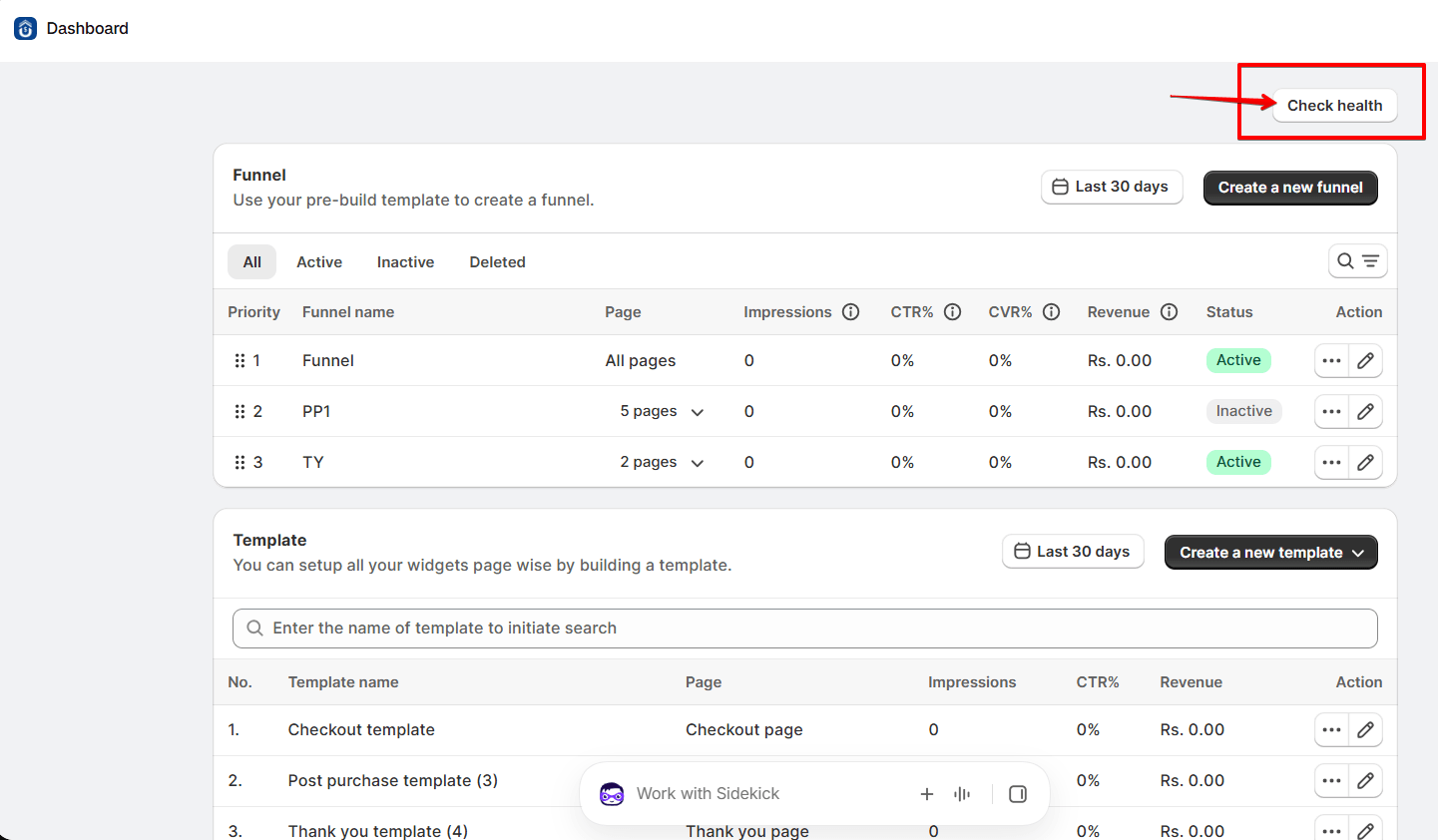
You can open Check health from the app dashboard. It takes just one click.
- Go to your Shopify Admin and open the SellMore Post Purchase Upsell app.
- On the Dashboard, look at the top-right corner of the page.
- Click the Check health button.
- The Store health popup opens and shows your setup progress.
What Does Check Health Do?
Check health reviews your store configuration. It then points out anything that stops your upsell offers from showing to customers.
Understanding the Store Health Popup
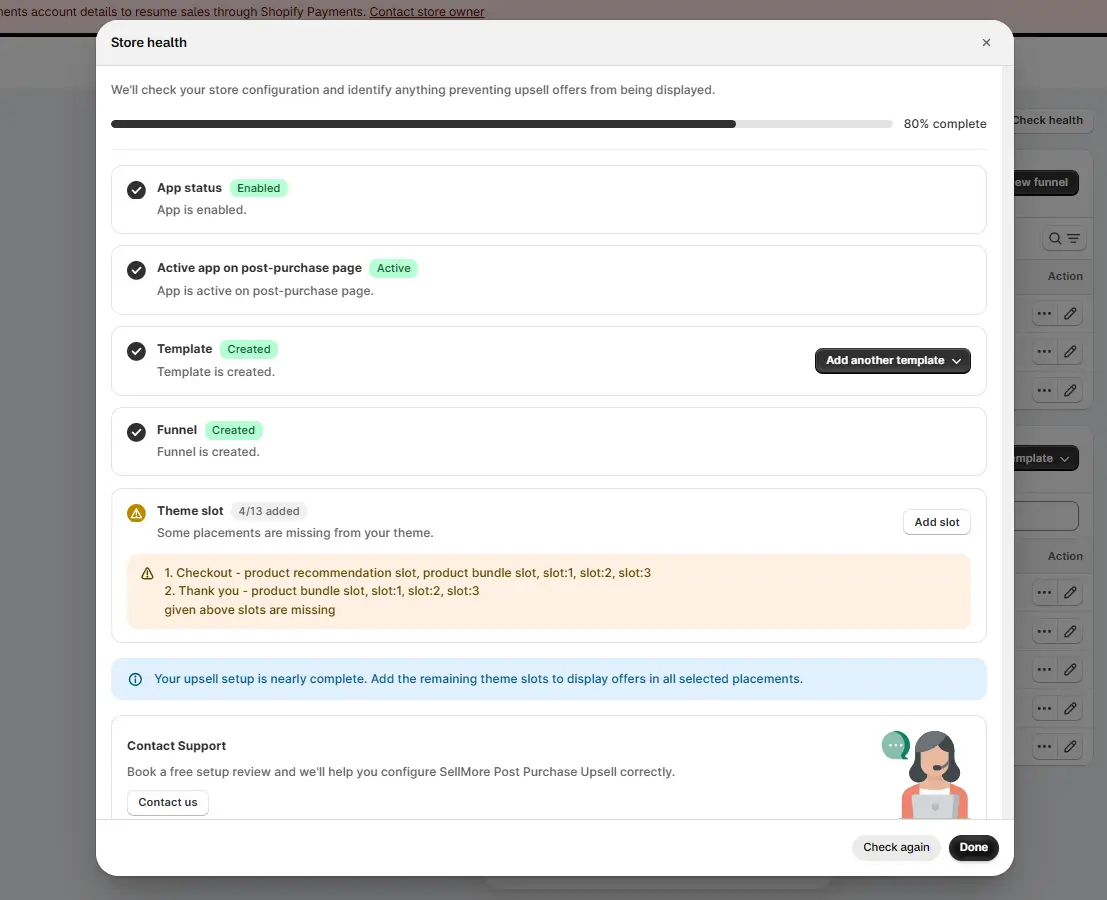
At the top of the popup, you will see a short message and a progress bar. The bar shows a percentage, such as 80% complete. As you finish each item, the percentage goes up. Below the bar, you will find a checklist. Each item shows a status label and a short description. A green check means the item is ready. A warning icon means the item needs your attention.
Setup Checklist Explained
The popup lists five setup items. Let's go through them one by one.
App Status Status Check
App status Enabled / Disabled This check confirms that the app is turned on for your store. When everything is fine, you will see an Enabled label with the message "App is enabled." If the app is turned off, your upsell offers will not show. In that case, enable the app first.Active App on Post-Purchase Page Status Check
Active app on post-purchase page Active / Inactive This check confirms that the app is active on your post-purchase page. The post-purchase page is the page customers see right after they pay. Your one-click upsell offers appear here. When it is set up, you will see an Active label with the message "App is active on post-purchase page."Template Setup Item
Template Created / Not created A template holds the design and content of your upsell offer. This check tells you whether at least one template exists in your store. When it does, you will see a Created label with the message "Template is created." Add another template Dropdown Button Use this button to create more templates without leaving the popup. Click it, and then choose the type of template you want to add. You will move to the template setup page.Funnel Setup Item
Funnel Created / Not created A funnel decides when and where your upsell offers appear. It also sets the order in which they show. This check confirms that you have created at least one funnel. When a funnel exists, you will see a Created label with the message "Funnel is created." If no funnel exists, click the action button to go to the funnel page and create one.Theme Slot Setup Item
Theme slot Counter Theme slots are the places in your Shopify theme where your offers can show. This item displays a counter, such as 4/13 added. It means 4 out of 13 available placements are added to your theme. If any slot is missing, you will see the message "Some placements are missing from your theme." An orange box then lists each missing slot by page. Missing slot list Info The list is grouped by page. For example:- Checkout — product recommendation slot, product bundle slot, slot:1, slot:2, slot:3
- Thank you — product bundle slot, slot:1, slot:2, slot:3
Contact Support Help
Contact us Button Need help? At the bottom of the popup, you can book a free setup review. Our team will help you set up SellMore Post Purchase Upsell correctly. Click Contact us whenever a step feels unclear or a setting does not work as you expect.Popup Buttons and Messages
The popup also has a few buttons and messages that help you finish your setup.
Popup Controls Actions
Setup complete message Info A blue message appears in the popup when only a few steps remain. For example, it may say "Your upsell setup is nearly complete. Add the remaining theme slots to display offers in all selected placements." Check again Button After you fix an item, click Check again. The app scans your store once more and updates the checklist and the progress bar. Done Button Click Done to close the popup and go back to your dashboard. Close (×) Icon You can also use the × icon in the top-right corner of the popup to close it.How to Fix a Pending Item
You do not need to search for the right settings page. Check health takes you there.
- Open Check health from the dashboard.
- Find the item with a warning icon.
- Click its action button, such as Add slot or Add another template.
- Complete the setup on the page that opens.
- Return to the dashboard and click Check health again.
- Click Check again and confirm that the item now shows a green check.